Chrome's Hidden Secret: The Ultimate Guide to Disabling Hardware Acceleration
Chrome's Hidden Secret: The Ultimate Guide to Disabling Hardware Acceleration
Disabling hardware acceleration in Google Chrome can be a game-changer for users who experience glitches, lag, or compatibility issues with their system. This feature, while beneficial for most users, can sometimes cause problems due to conflicts with system resources or outdated graphics drivers. In this comprehensive guide, we will delve into the world of Chrome's hardware acceleration, exploring its benefits, drawbacks, and the step-by-step process to disable it.
For many users, disabling hardware acceleration in Chrome can resolve issues such as distorted graphics, intermittent crashes, or slow performance. According to Google's official support page, "Hardware acceleration can sometimes cause issues, especially if your graphics drivers are outdated or corrupted." By disabling this feature, users can experience a smoother browsing experience, even on lower-end hardware.
To start, it's essential to understand what hardware acceleration is and how it works. In simple terms, hardware acceleration is a technology that offloads certain tasks from the computer's central processing unit (CPU) to its graphics processing unit (GPU). This enables faster rendering of graphics, videos, and other multimedia content. However, as with any technology, there can be trade-offs, and sometimes, hardware acceleration can lead to compatibility issues or conflicts with system resources.
Disabling hardware acceleration in Chrome is a straightforward process that requires only a few clicks. Here's a step-by-step guide to get you started:
The Process of Disabling Hardware Acceleration
1. Open Google Chrome on your computer.
2. Click on the three vertical dots in the upper right corner of the browser window.
3. Select "Settings" from the dropdown menu.
4. Scroll down to the "Advanced" section.
5. Click on "System" or "Performance" (depending on your Chrome version).
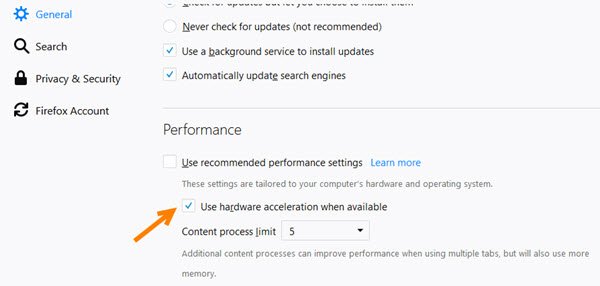
6. Uncheck the box next to "Use hardware acceleration when available."
Alternatively, you can also disable hardware acceleration by launching Chrome with the following command in the command line:
```
"C:\Program Files (x86)\Google\Chrome\Application\chrome.exe" --disable-gpu
```
Why Disabling Hardware Acceleration Might Be Necessary
While hardware acceleration is a powerful feature, there are situations where disabling it might be necessary. Some of the reasons include:
* **Compatibility issues:** Outdated or corrupted graphics drivers can cause hardware acceleration to malfunction, leading to crashes, distorted graphics, or other issues.
* **System resource conflicts:** In some cases, hardware acceleration can consume excessive system resources, leading to slow performance, crashes, or other issues.
* **Glitches and lag:** Hardware acceleration can sometimes cause glitches or lag, especially when browsing websites with complex graphics or animations.
* **Security concerns:** Disabling hardware acceleration can also help mitigate security risks, such as preventing malicious code from exploiting hardware vulnerabilities.
The Benefits of Disabling Hardware Acceleration
Disabling hardware acceleration in Chrome can bring several benefits, including:
* **Improved stability:** Disabling hardware acceleration can resolve issues such as crashes, distorted graphics, or slow performance.
* **Smoother browsing experience:** By offloading tasks from the CPU to the GPU, hardware acceleration can sometimes cause lag or glitches. Disabling it can provide a smoother browsing experience.
* **Compatibility improvements:** Disabling hardware acceleration can help resolve compatibility issues with outdated or corrupted graphics drivers.
* **Security enhancements:** Disabling hardware acceleration can also help mitigate security risks, such as preventing malicious code from exploiting hardware vulnerabilities.
The Drawbacks of Disabling Hardware Acceleration
While disabling hardware acceleration can bring several benefits, there are also some drawbacks to consider:
* **Performance impact:** Disabling hardware acceleration can affect the performance of graphics-intensive websites, videos, or other multimedia content.
* **Increased CPU usage:** Without hardware acceleration, the CPU will take over the tasks typically handled by the GPU, leading to increased CPU usage.
* **Potential for security vulnerabilities:** Disabling hardware acceleration can leave your system vulnerable to security risks, such as buffer overflows or other exploits.
Alternatives to Disabling Hardware Acceleration
If disabling hardware acceleration doesn't resolve your issues, there are several alternatives you can try:
* **Update your graphics drivers:** Ensure that your graphics drivers are up-to-date, as outdated drivers can cause hardware acceleration to malfunction.
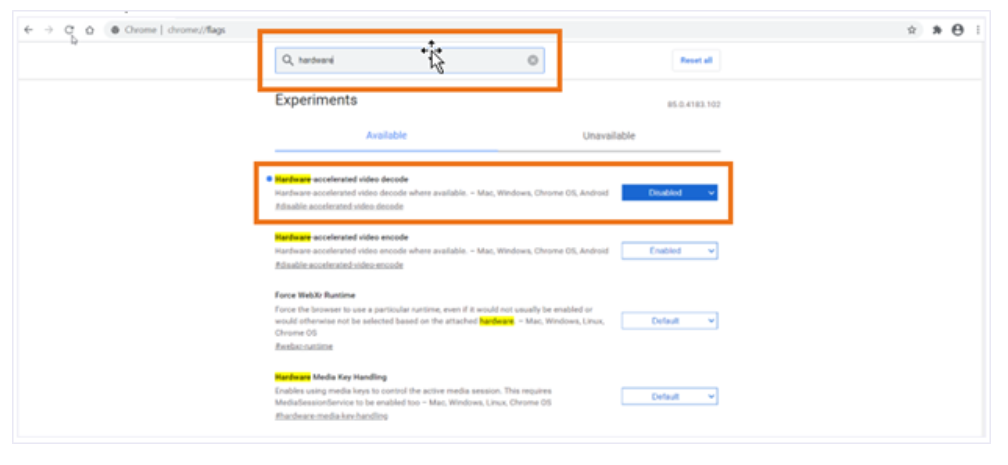
* **Disable individual features:** Instead of disabling hardware acceleration entirely, you can try disabling individual features, such as WebGL or Flash.
* **Use a different browser:** If disabling hardware acceleration in Chrome doesn't resolve your issues, you can try using a different browser, such as Mozilla Firefox or Microsoft Edge.
Conclusion
Disabling hardware acceleration in Chrome can be a game-changer for users who experience glitches, lag, or compatibility issues with their system. By understanding the benefits and drawbacks of this feature and following the step-by-step guide to disable it, users can experience a smoother browsing experience, even on lower-end hardware. However, if disabling hardware acceleration doesn't resolve your issues, there are several alternatives you can try, such as updating your graphics drivers or using a different browser.
Related Post

Top 5 Most 3 Pointers In A Game of League of Legends: Strategies to Outmaneuver Your Opponents

Uncovering the Rich History of Lancaster Online Obituaries: A Treasure Trove of Local Genealogy and Social History

Damian Lewis Finds Love Again: Unveiling His New Romance

Unlock the Secrets of Bernie Sanders' Net Worth: What You Need to Know


